
HDRI (High Dynamic Range Image) is one of the main ingredients that bring 3D scenes to life. It stores a much wider range of light intensities than a standard image, which helps 3D scenes look more realistic.
In this guide, we’ll explain how HDRI and image-based lighting work, how environment maps affect lighting and reflections, and how to set up, choose, and troubleshoot an HDRI in your scene.
What Is HDRI?
An HDRI (High Dynamic Range Image) is an image that stores a far wider range of brightness values than a standard photo, from deep shadows to the full intensity of the sun. In 3D rendering, HDRIs are usually 360-degree panoramas used to light a scene, giving it realistic illumination, shadows, and reflections from a real or studio environment.
This matters because, in a real environment, the sun is thousands of times brighter than the sky around it. A standard 8-bit image clips everything above pure white, so the sun ends up no brighter than a cloud, and the render gets flat light with weak shadows. An HDRI keeps those real ratios, so a small, intense sun casts crisp shadows while the sky adds soft fill.
The 360-degree format ensures that the renderer sees every light source around the scene, including the sun, studio lights, and windows, and represents them accurately in the final render.
HDRIs use the .hdr and .exr file formats. They cannot be stored in regular JPGs or PNGs, which are only capable of storing low dynamic range (LDR) light intensities.
HDRI vs. HDR: What Is the Difference?
HDR, or High Dynamic Range, is simply the concept of using a wider range of brightness for capturing scenes. HDRI, or High Dynamic Range Image, is the image file itself that has all the gathered brightness data and can be used to light a 3D scene. HDRI vs HDR comes down to the distinction between the image and the concept of high dynamic range.
Before an HDRI can be displayed on screen, it must first be tone-mapped because it contains a wide range of lighting values, from very bright areas to very dark areas. Without tone mapping, these areas may appear completely white or black, causing details to be lost.
A tone-mapped HDR photo will have more balanced brightness and visible details, making it easier to view on a standard screen. However, tone mapping compresses the original lighting information into a limited range, so the resulting image cannot provide the full lighting data needed for image-based lighting.
How Does Image-Based Lighting Work?
Image-based lighting (IBL) uses an image of an environment to illuminate a 3D scene instead of relying only on manually placed lights.
How an HDRI Environment Map Lights the Scene
An HDRI environment map works like a texture map, but for lighting. It wraps around the entire scene, and each pixel acts as a small light source. The panorama is usually stored in an equirectangular (latitude-longitude) layout, so every pixel corresponds to a direction around the scene. The renderer applies it through an environment, dome, world, or skydome light and reads both brightness and color from each area: a bright sun spot becomes a strong directional source, a blue sky becomes soft cool fill, and warm buildings add colored bounce light.
Lighting, Shadows, and Reflections
HDRI is not just a technique for controlling the lighting of a scene. It also deals with shadow direction and softness, reflections, refractions, color temperature, and other elements that affect the visible environment.
The effects of HDRI are more noticeable in areas that are reflective, mainly glossy materials like metal, glass, polished car paint, and other shiny surfaces. This is because shiny surfaces mirror their surroundings, so the HDRI itself becomes visible in them. Without an environment, a chrome object reflects only empty black space and looks dull.
How Are HDRI Maps Created?
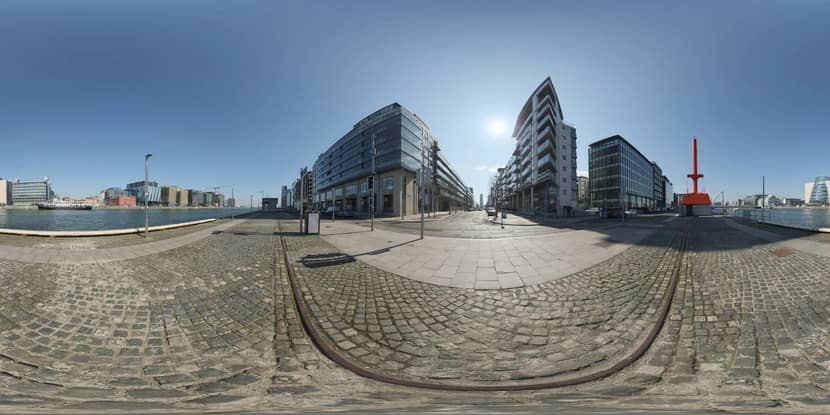 An HDRI environment map in equirectangular (360-degree) projection
There are various ways that HDRI maps can be created, but the typical process involves shooting several bracketed exposures in each direction, from very dark to very bright. The exposures are merged into a single image that keeps the full brightness range, and the views are then stitched into a 360-degree panorama.
HDRIs can be used for all kinds of scenes in all types of locations, whether outdoors where the environment is heavily lit by natural lighting, or indoors with artificial lights and studio lighting setups. Some HDRIs are even created digitally rather than photographed on site.
Where to Get HDRIs
HDRIs can be sourced from free community libraries, commercial collections, HDRIs bundled with 3D software and asset libraries, and lastly, you can capture or produce your own HDRIs.
While some render engines have free HDRIs within their software, you may want to explore more options for more complex scenes. Great places to start are free libraries like Poly Haven and ambientCG. Both are public libraries for different digital assets like textures, models, and HDRIs.
However, you should always take note of licensing terms when using free HDRIs. There are downloadable HDRIs that are free, but cannot be commercially used and some may need proper crediting if they are to be used commercially, in case you’ll be using them for client work or your business.
In some situations, creating your own HDRI makes more sense, particularly when a CG object needs to match a specific real-world location or when a studio lighting setup must be reproduced accurately.
For example, when Colossus was added to the shots of Deadpool (2016) in post-production, the character's highly reflective metallic surface needed to reflect the surrounding environment convincingly. A matching HDRI would help capture the scene's lighting and reflections, making the CGI character appear more naturally integrated into the footage.
Why Use HDRI Lighting in 3D Rendering?
HDRI lighting helps artists capture as much lighting detail as possible. It also offers several advantages that make lighting setups easier to create and more realistic.
- Fast setup compared with building a complete light rig
- Natural variations in light intensity and color
- Realistic reflections and highlights
- Consistent lighting across objects and renders
- Quick changes in mood, weather, or time of day
- Better integration of CG objects with photographic footage or backgrounds
The use of HDRIs is commonly seen in applications that need maximum realism, namely product visualization, automotive rendering, architectural visualization, VFX, advertising, and look development.
For example, an HDRI captured at a real location can help a CG object match the lighting and reflections of the original environment. This is particularly useful for reflective objects, such as metallic cars, as the HDRI captures the surrounding environment that appears on their surfaces. This helps the CG object blend more naturally into live-action footage.
How to Use HDRI in a 3D Scene
Now, let’s discuss how HDRI is actually used in a 3D scene in 3 simple steps. This is the common workflow. Some workflows may be more complicated depending on the project needs. For example, some projects require the use of multiple HDRIs, which involve a few extra steps.
Load the HDRI as an Environment Map
The first step is to load the HDRI into the scene environment, wrapping your scene in a 360-degree map. Depending on the renderer or software you’re using, this will immediately change how your scene looks - lighting changes and reflections are improved.
Different software will have different names for this feature, such as environment lighting, image-based lighting (IBL), or dome lighting. However, the underlying principle remains the same: using an image of an environment to illuminate the scene.
Adjust Rotation, Intensity, and Exposure
Upon loading the HDRI, you may notice that lighting may not match the models in your 3D scene or shadows may not have the proper orientation. This simply means that your HDRI needs to be rotated. This will change the direction of the main light, shadows, reflections, and highlights.
Next, adjust the HDRI's intensity or exposure to control the overall brightness of the environment lighting. Increasing the intensity makes the scene brighter, while decreasing it makes the lighting darker.
Note: HDRI intensity works together with camera exposure and tone mapping to determine the final image brightness and how highlights and shadows appear.
Control the Background and Add Extra Lights When Needed
When you load an HDRI as an environment map, depending on the software you’re using, by default, it may be visible as a background. If you’re only after the lighting effects, most renderers allow you to hide the HDRI in camera view while retaining lighting effects.
While HDRI lighting can dramatically improve a scene's lighting, it may not be the only light source you need. Depending on your scene, you may need additional lights, such as area lights, rim lights, or directional lights, to gain more control over highlights, shadows, or subject separation, which can be difficult to achieve using an HDRI alone.
Note: If you're using an HDRI alongside additional light sources, make sure their lighting directions remain consistent. If your HDRI already includes sunlight, consider turning off the renderer's separate sunlight to avoid duplicate sun sources.
How to Choose the Right HDRI
There are different types of HDRIs, and the right HDRI for your scene depends on the subject, desired mood, materials, and final camera view.
Here are other factors you should consider when choosing which type of HDRI to use:
- Dynamic range
- Resolution
- Main light direction
- Shadow softness
- Color temperature
- Horizon position
- Outdoor, indoor, or studio environment
- Reflection quality
Here are HDRI types you can choose from and how they compare:
| HDRI Type | Lighting Character | Best Uses | Main Considerations |
|---|---|---|---|
| Overcast outdoor | Soft and diffused lighting producing gentle shadows | Portraits and evenly lit product renders | Reflective materials look less defined |
| Sunny outdoor | Bright directional sunlight that produces sharp shadows | Exterior renders, automotive, and outdoor scenes | Harsh shadows and overexposed highlights |
| Golden hour | Warm directional light that produces long shadows and an atmospheric mood | Landscape renders and cinematic scenes | Warm light may affect material colors |
| Interior | Mixed lighting from artificial sources and outdoor lighting | Interior visualization and indoor scenes | Varying light distribution, may require a lot of lighting tweaking |
| Studio/softbox | Controlled lighting with smooth gradients and defined highlights | Product visualization and material previews | May produce reflections that appear artificial because of the lack of environmental context |
Common HDRI Lighting Problems and Limitations
Working with HDRIs, you may encounter issues related to lighting, reflections, shadows, and image quality. Here are specific situations you may encounter and possible solutions:
- Flat or weak lighting - use an HDRI with a stronger light source or supplement with additional lights.
- Blurry reflections or backgrounds - use a higher resolution HDRI.
- Unwanted color casts - adjust white balance or color settings to neutralize unwanted color tints.
- Incorrect exposure - fine-tune tone-mapping to get the right balance between highlights, shadows and contrast.
- Poor HDRI rotation - rotate the HDRI to match your scene until shadows are positioned correctly.
- Misaligned horizons - adjust HDRI orientation or change the background to one that better fits the HDRI.
- Parallax or scale problems - an HDRI is mapped as if it were infinitely far away, so it has no depth. When the camera moves, nearby parts of the environment don’t shift as they would in reality, and objects can look like they float. Add a ground plane or shadow catcher, project the HDRI onto simple geometry, or model the close surroundings in 3D.
- Double shadows when additional lights conflict with the HDRI - reduce light sources or simply match the direction of additional lights to the HDRI.
- Weak illumination inside enclosed interiors - add area lights to the scene, usually near windows or other light sources.
- Noise in difficult indirect-lighting situations - increase render samples or tweak render settings.
One important reminder: HDRI lighting surrounds the scene and does not give you as much control over lighting as positionable lights do. HDRI is a good foundation for lighting and may be enough in some situations. However, if you need more control over shadows, highlights, and lighting direction, use positionable lights.
FAQ
Can You Use More Than One HDRI in the Same 3D Scene?
Yes, you can use more than one HDRI in the same 3D scene. For example, one HDRI can be used for lighting, another for reflections, and a separate image for the background.
Can HDRI Lighting Be Animated?
Yes, HDRI lighting can be animated to simulate changing lighting conditions, such as lightning flashes, flickering lights, or the transition from day to night and vice versa.
Is an HDRI the Same as a Skybox?
No, an HDRI and a skybox are not the same, although they can be used together. Skyboxes typically use low dynamic range (LDR) images to display the background of a 3D scene. HDRIs, on the other hand, contain a wider range of brightness values, allowing them to provide realistic lighting and reflections.
HDRIs can also be used as skyboxes, but standard LDR skybox images cannot provide the lighting information an HDRI does.
Can HDRIs Be Used in Real-Time Game Engines?
Yes, HDRIs are widely used in real-time game engines for realistic lighting, reflections, and backgrounds.
Can You Edit or Color Grade an HDRI Before Using It?
Yes, you can edit or color grade an HDRI before using it. You can adjust brightness, color tints, and exposure. In some cases, editing an HDRI before loading it into your scene is necessary so that it matches your environment. Use software that supports 32-bit images and save the result as .hdr or .exr: exporting to JPEG or PNG clips the brightness range, and the HDRI stops working as a light source.

About the author
Nicole Holt is an experienced 3D enthusiast with a career in marketing and content writing. Thanks to this unique combination, she is able to showcase the technical intricacies of 3D art and rendering while also making the subject accessible to a wide audience. When she's not immersed in the digital world, Nicole can be found in the great outdoors, most likely with her beloved dog, Sammy.